Selecting Suppliers
| Audience: | All users can do this although it is usually the responsibility of the Purchasing team |
| Last Reviewed: | 27 January 2026 |
| Introduction: | This topic explains how to assign suppliers to requisitions or enquiries |
| See also: | Entering Supplier Quotes |

When a requisition is being created the account code is selected for the component to be ordered.
If a preferred supplier(s) has been associated with that account code it will be automatically added to the order.
It is also possible to add the same supplier to the order more than once, e.g. for different currencies or delivery ports.
Superintendents cannot add Suppliers to orders, this is a Purchasing only task.

Suppliers are generally only added at the Enquiry stage. It is not possible to add a supplier at the requisition stage other than as described above, i.e. through the account code selection.
The process for selecting suppliers is
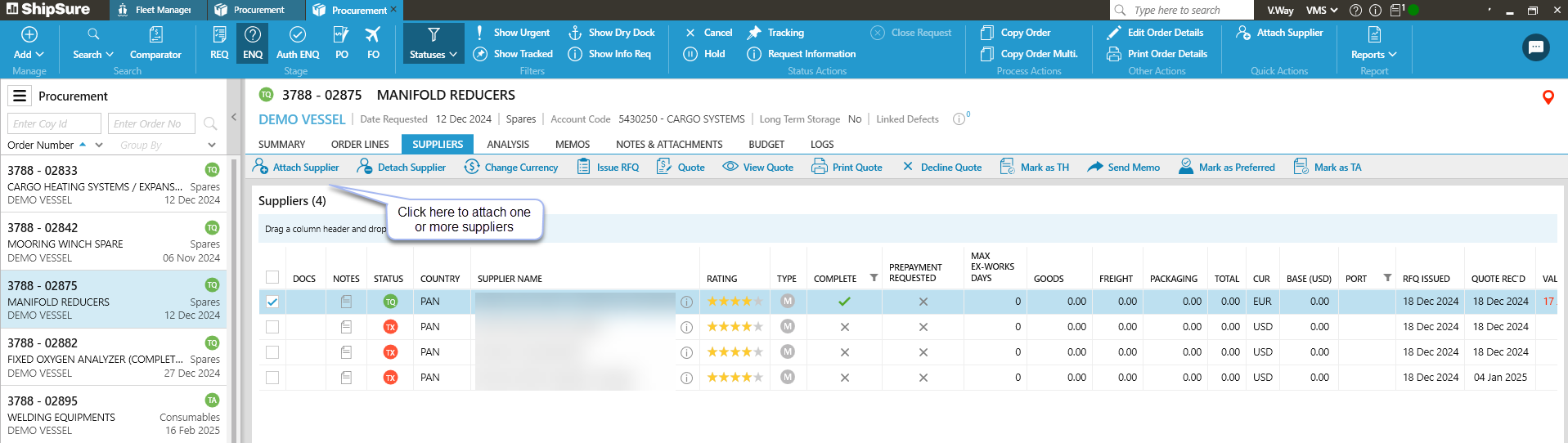
- In the Purchasing screen, select any Enquiry, then click its [Suppliers] tab.
- To add a supplier, click the [+ Attach Supplier] option.
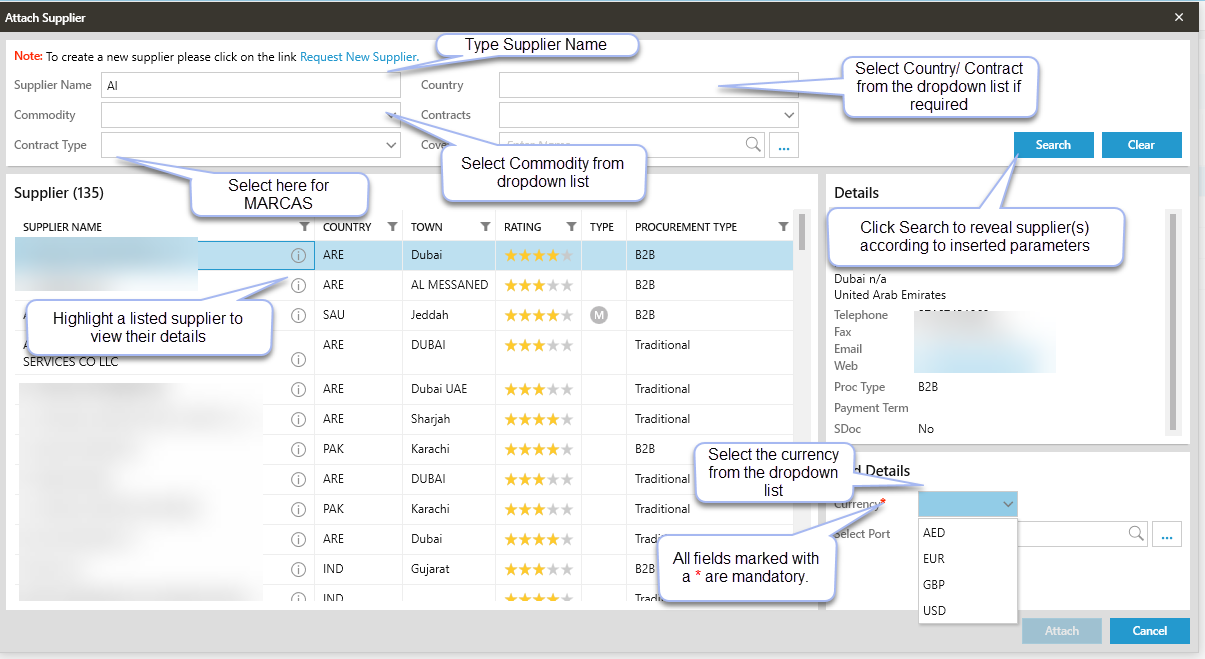
- Search for the supplier by name, country, commodity or contract then click [Search] to view all matching suppliers.
- Highlight the required Supplier from the list and the Details window will now display information about any supplier i.e. address, telephone number etc.
- Select the currency for the supplier by clicking on the Currency drop-down list. Remember the same supplier can be added more than once but with a different currency selected.
- Enter a delivery port (if required). Depending on the supplier selected, this field may be mandatory which will be denoted by a *.
- To enter a port, start by typing the name of the port and select it from the list, or click the [...] icon, where ports can also be searched by country.
- Click [Attach] to add the supplier to the list.
The [Contracts] field lets you search for MARCAS suppliers only.
Removing Suppliers
Only suppliers at the Enquiry Stage with a status or EO or EP, can be removed.
This is done by selecting the supplier, clicking on the [Detach Supplier] option and then selecting [Yes] to confirm.
Changing Currency
The Supplier Currency can only be changed at the Enquiry Stage. If the supplier is at the Authorised Enquiry stage, the currency cannot be changed.
To change the currency of a supplier, select the supplier and click on the [Change Currency] option.
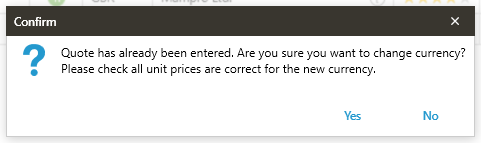
This action will now require to be Confirmed as in the window below
Now select the new currency from the dropdown list
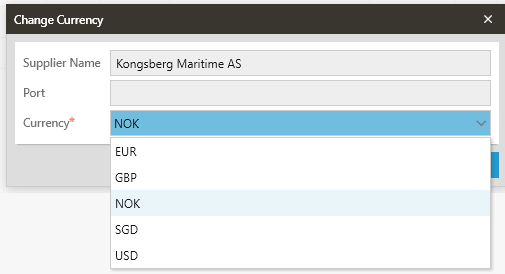
Select the Save button to implement the change.
If the Change Currency is applied to a supplier that has already submitted a quote, this will change the Currency not the amount charged for each item in the quote
What next?
After the suppliers have been select, issue a request for quote.